
Creating your free digital profile
To sign up for your free digital profile with Propel, register here.
After registering, you’ll receive an activation code and a link to enter the code and continue setting up your account.
Once you’ve logged into the Propel dashboard, you can begin creating your digital profile!
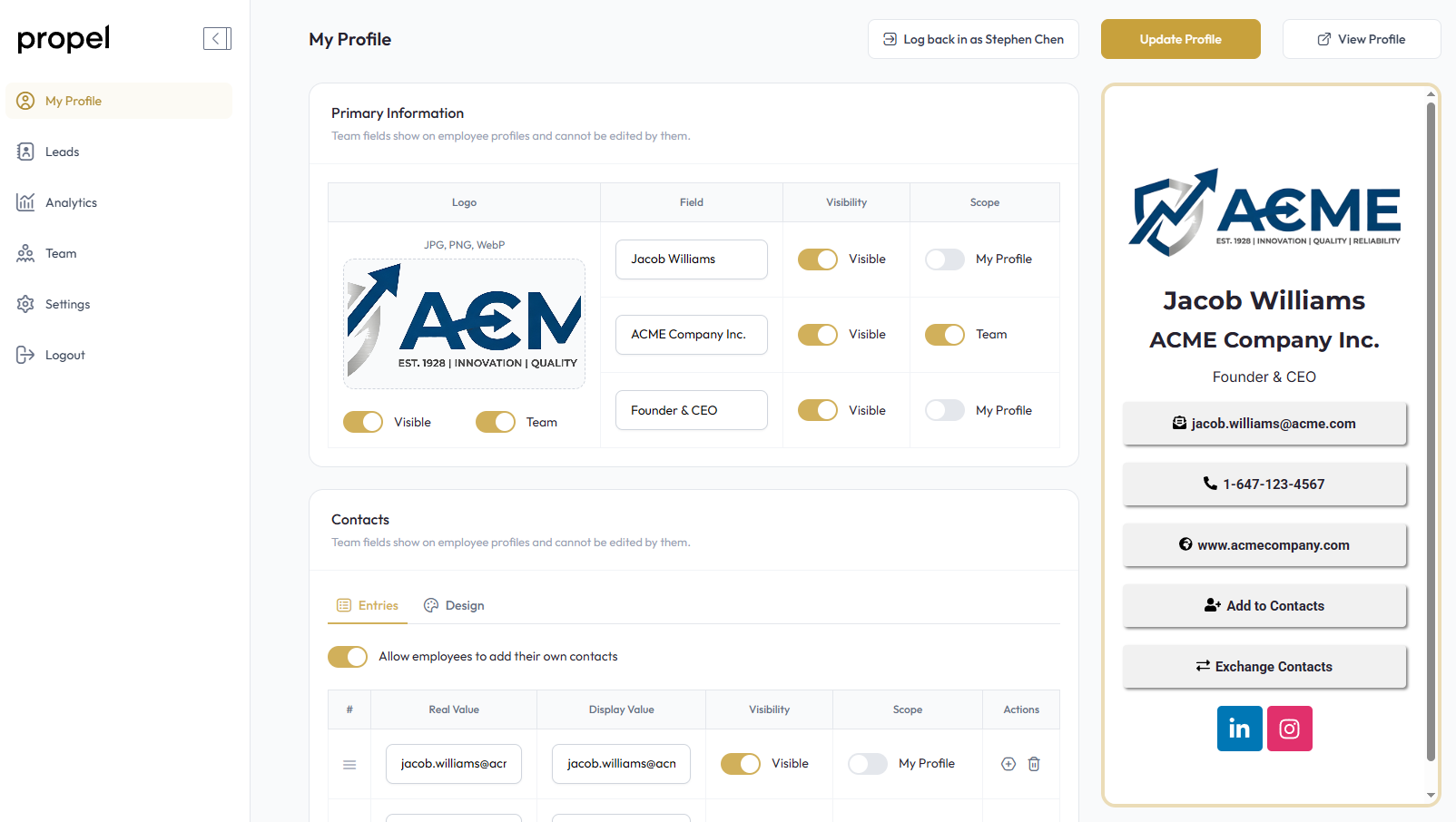
Our digital profile builder is designed to be intuitive for your employees. As you fill out the information, you will see a live preview of your digital profile on the right.
Hiding sections
To hide a section from your digital profile, you can leave the field blank or switch the toggle from Visible to Invisible next to the section you wish to hide.
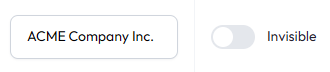
Toggle it again to make the section visible again.
Changing the scope of a section
If you have multiple employees in your organization, you can configure a section to be displayed globally across all of your employees by switching the Scope toggle from My Profile to Team.

Once saved, your employees won’t be able to edit this section on their end.
Publishing your profile
To publish your digital profile, click the Publish Profile button in the top right corner. Don’t worry! You will be able to make changes to your profile anytime.

Creating your free digital profile
To sign up for your free digital profile with Propel, register here.
After registering, you’ll receive an activation code and a link to enter the code.
Once you’ve logged into the Propel dashboard, you can begin creating your digital profile!
Our digital profile builder is designed to be intuitive for your employees. As you fill out the information, you will see a live preview of your digital profile on the right.
Hiding sections
To hide a section from your digital profile, you can leave the field blank or switch the toggle from Visible to Invisible next to the section you wish to hide.
Toggle it again to make the section visible again.
Changing the scope of a section
If you have multiple employees in your organization, you can configure a section to be displayed globally across all of your employees by switching the Scope toggle from My Profile to Team.
Once saved, your employees won’t be able to edit this section on their end.
Publishing your profile
To publish your digital profile, click the Publish Profile button in the top right corner. Don’t worry! You will be able to make changes to your profile anytime.
Creating your free digital profile
To sign up for your free digital profile with Propel, register here.
After registering, you’ll receive an activation code and a link to enter the code.
Once you’ve logged into the Propel dashboard, you can begin creating your digital profile!
Our digital profile builder is designed to be intuitive for your employees. As you fill out the information, you will see a live preview of your digital profile on the right.
Hiding sections
To hide a section from your digital profile, you can leave the field blank or switch the toggle from Visible to Invisible next to the section you wish to hide.
Toggle it again to make the section visible again.
Changing the scope of a section
If you have multiple employees in your organization, you can configure a section to be displayed globally across all of your employees by switching the Scope toggle from My Profile to Team.
Once saved, your employees won’t be able to edit this section on their end.
Publishing your profile
To publish your digital profile, click the Publish Profile button in the top right corner. Don’t worry! You will be able to make changes to your profile anytime.
Creating your free digital profile
To sign up for your free digital profile with Propel, register here.
After registering, you’ll receive an activation code and a link to enter the code.
Once you’ve logged into the Propel dashboard, you can begin creating your digital profile!
Our digital profile builder is designed to be intuitive for your employees. As you fill out the information, you will see a live preview of your digital profile on the right.
Hiding sections
To hide a section from your digital profile, you can leave the field blank or switch the toggle from Visible to Invisible next to the section you wish to hide.
Toggle it again to make the section visible again.
Changing the scope of a section
If you have multiple employees in your organization, you can configure a section to be displayed globally across all of your employees by switching the Scope toggle from My Profile to Team.
Once saved, your employees won’t be able to edit this section on their end.
Publishing your profile
To publish your digital profile, click the Publish Profile button in the top right corner. Don’t worry! You will be able to make changes to your profile anytime.